- Insert the installation media for Windows Server 2008 R2. After the installer runs, the Install Windows screen appears.
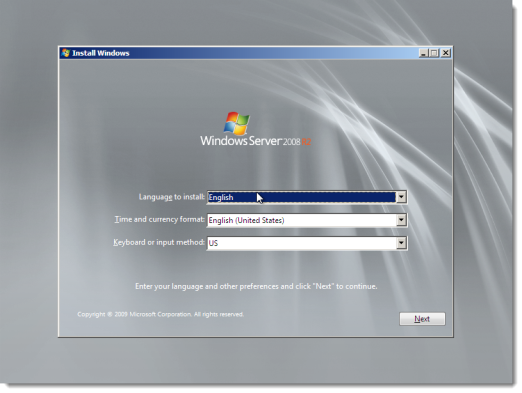
- Enter language and other preferences. Click Next.
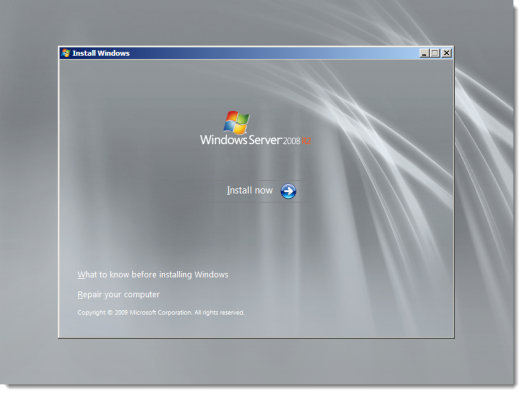
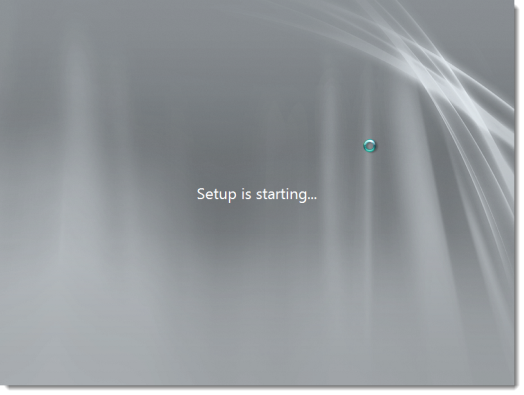
- Click Install now. The setup begins.
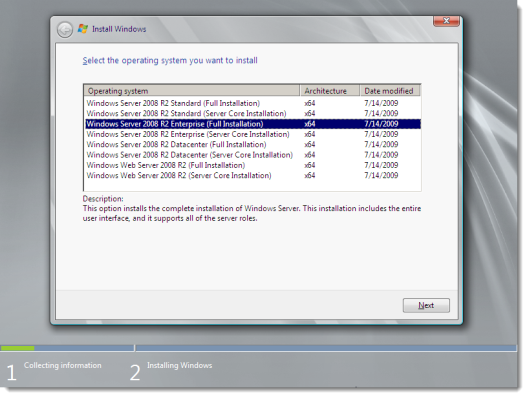
 The installer prompts to select an operation system.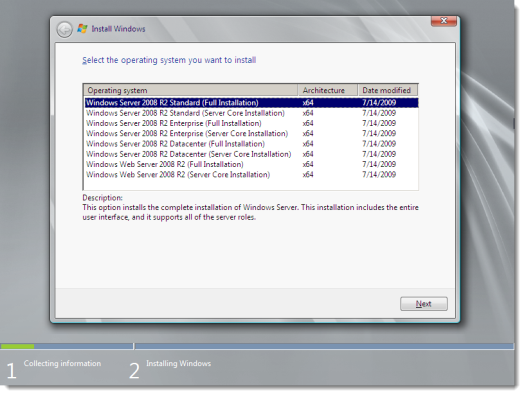
- Select Windows Server 2008 R2 Enterprise (Full Installation) and click Next.
 The installer prompts to read the license terms.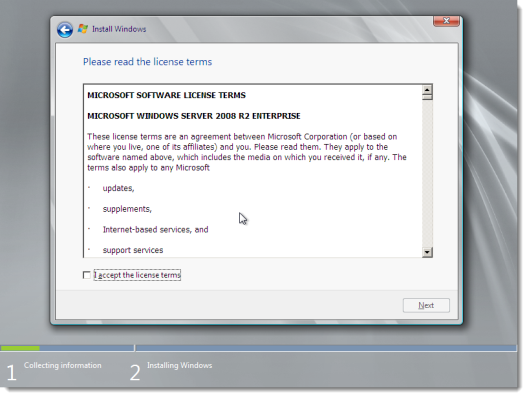
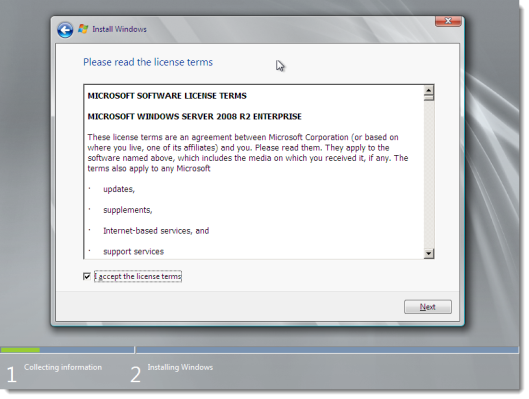
- Read the license terms. If you agree to the license terms, select I accept the license terms and click Next.
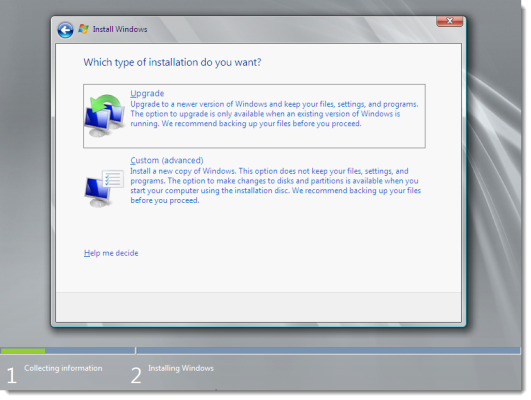
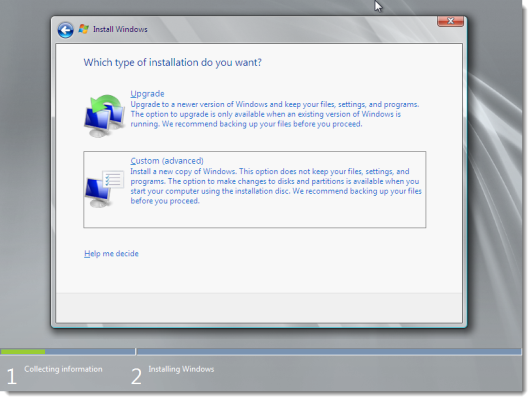
- The installer asks you which type of installation. For a new installation, click Custom (advanced).
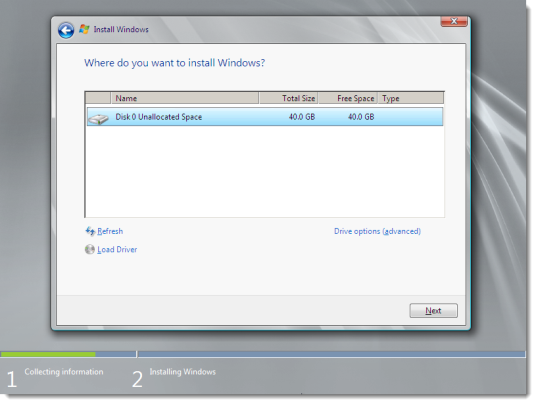
- The installer asks for disk location information. Make your selection and click Next.
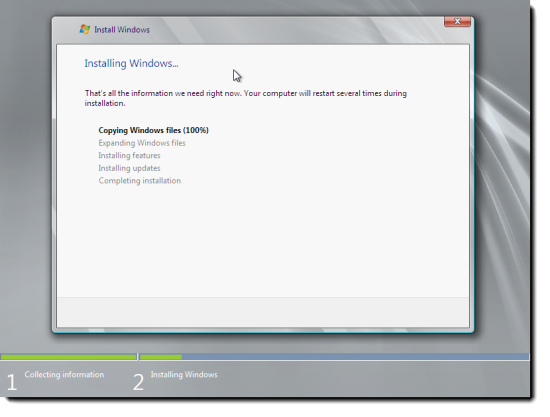
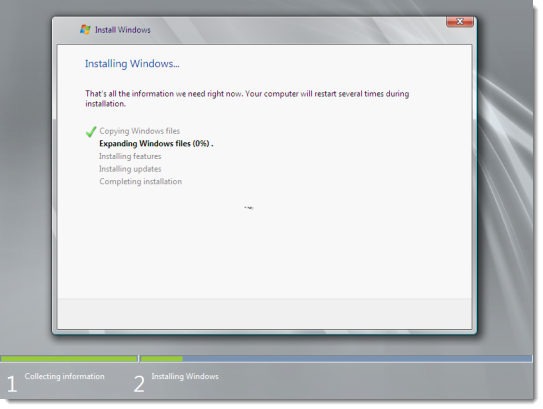
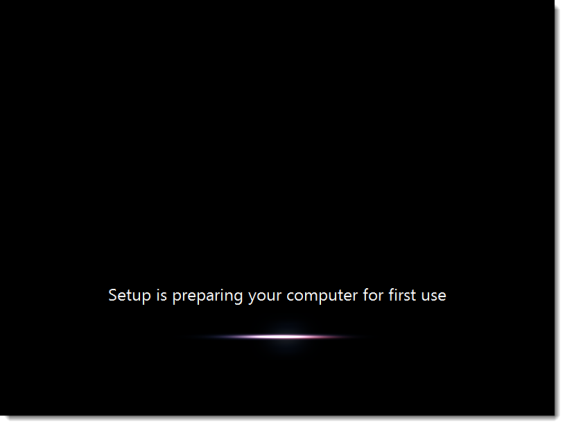
- The installation begins.
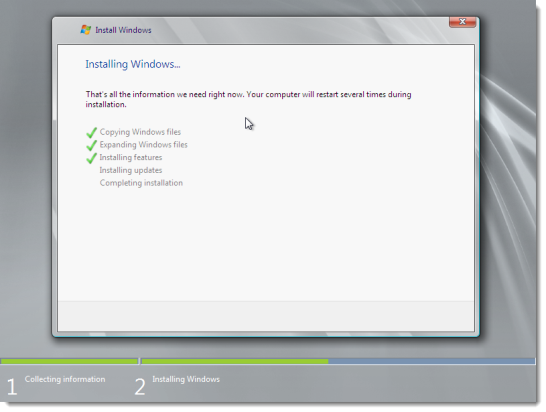
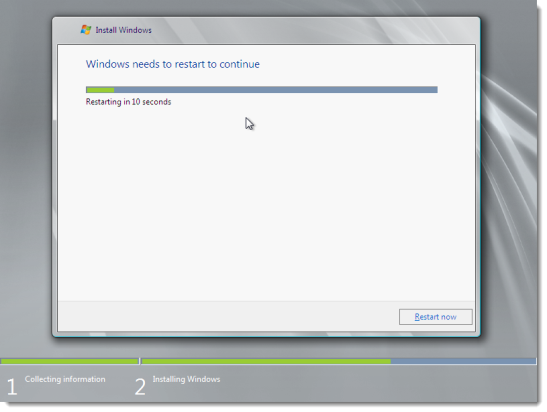
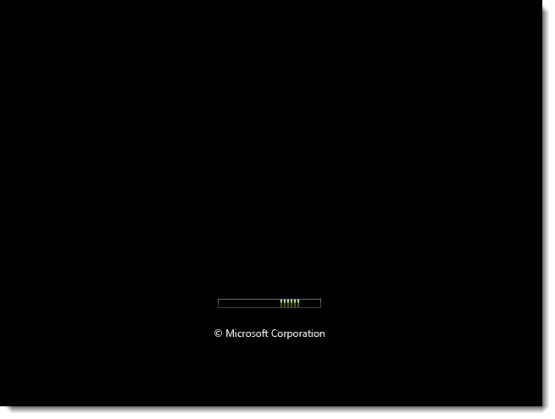
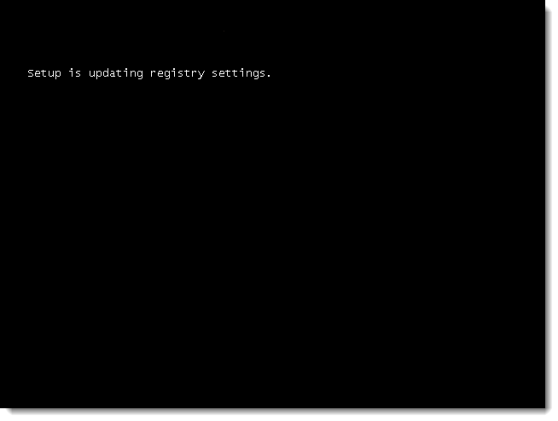
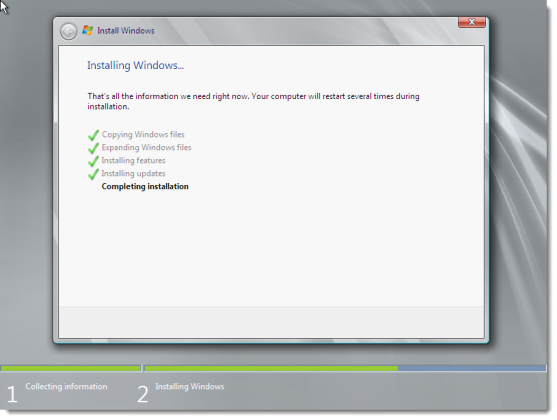
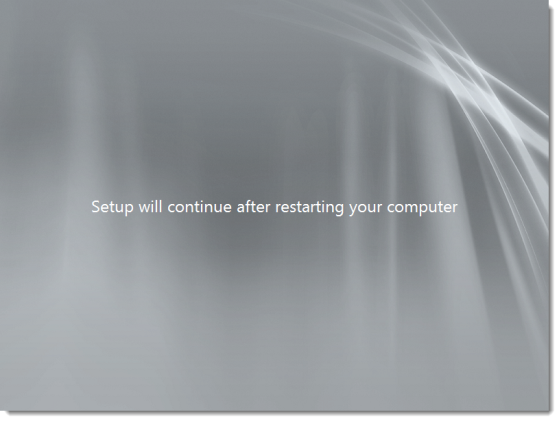
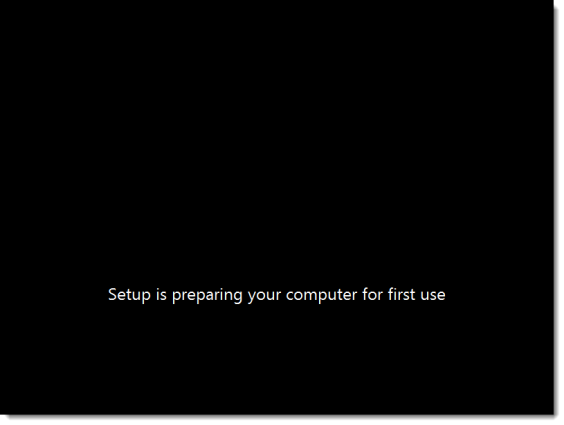
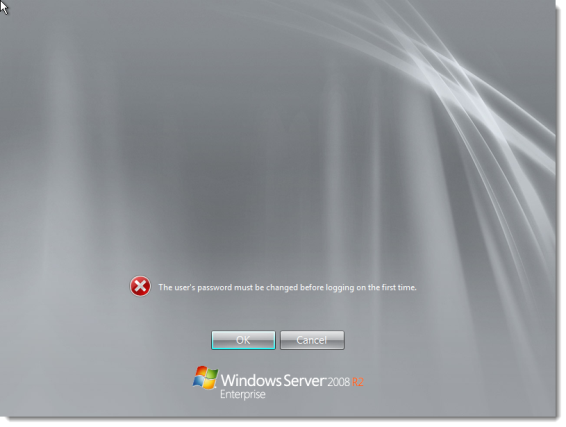
- The installer prompts to change the password. Click OK.
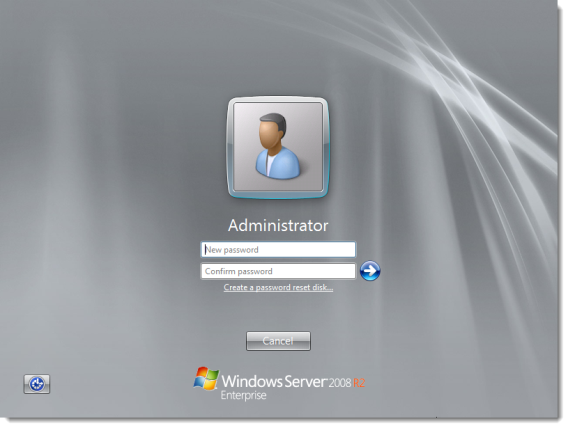
- Enter a new password, re-enter the password to confirm it, and click the right-arrow.
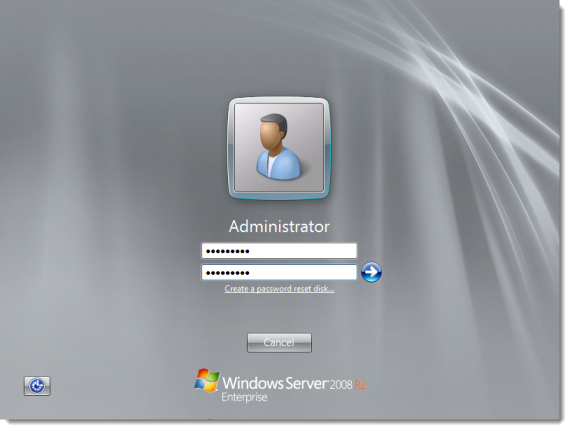
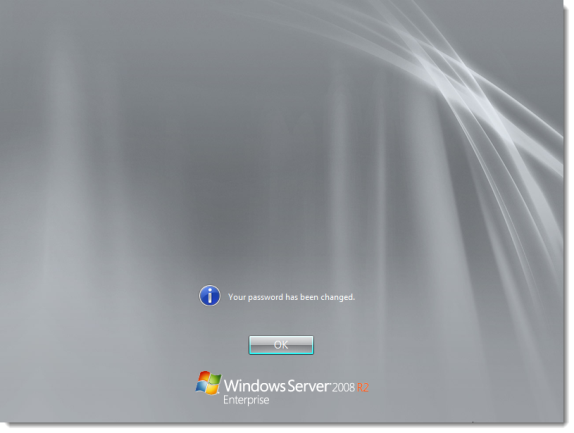
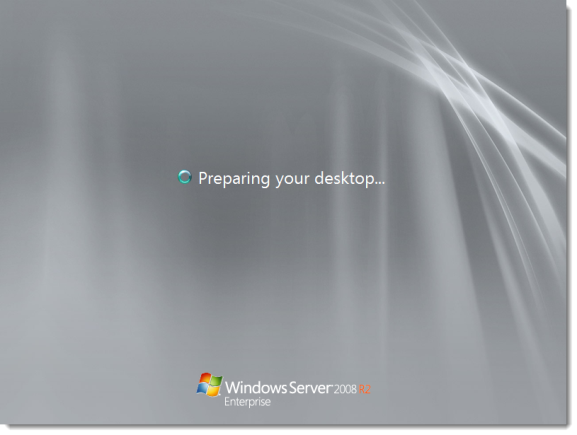
- After you click OK on the confirmation screen, the operating system prepares your desktop.
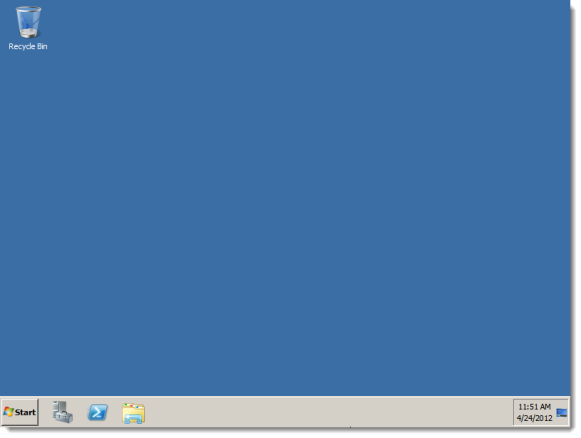
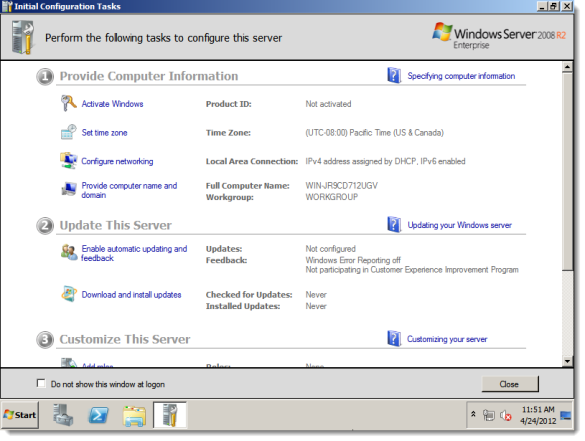
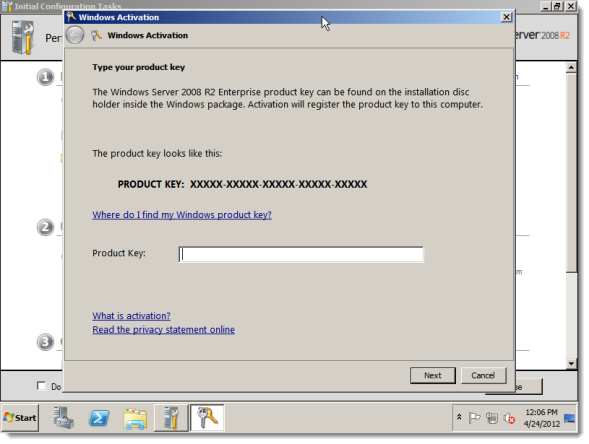
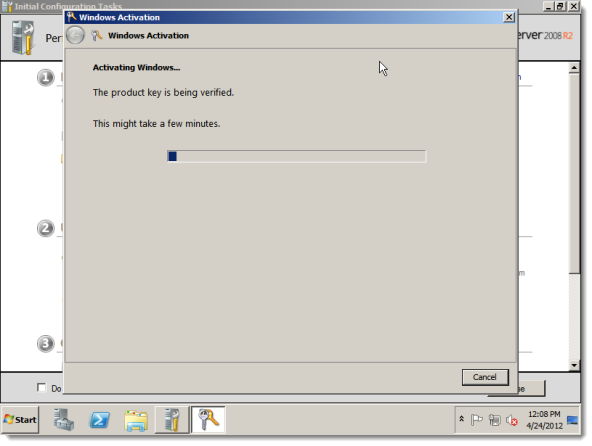
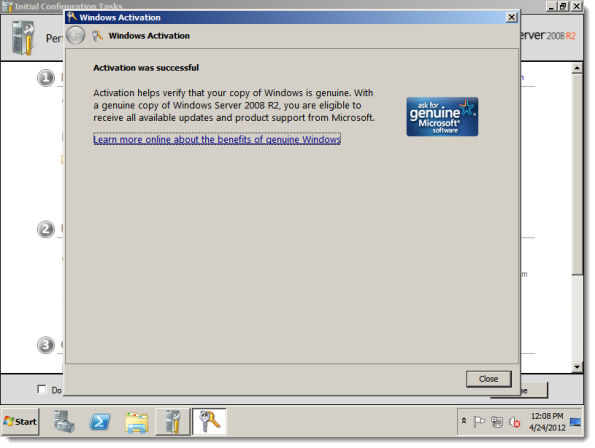
- The Initial Configuration Tasks window appears by default. Windows Server is now installed. Windows Server prompts for activation information. Enter the Product Key and click Next.

Selasa, 16 Oktober 2018
Install windows server 2008 R2

Langganan:
Posting Komentar (Atom)
-
 Contoh Sistem Operasi Berbasis GUI dan CLI serta Penjelasannya amitamita021.blogspot.com Seperti yang sudah di bahas pada artikel ...
 -
 Pengertian FTP Materi TKJ - FTP ( File Transfer Protocol ) adalah salah satu protokol tertua yang pernah ada di Internet. Protokol FTP dik...
 -
 Komponen Dan Peralatan Jaringan WAN amitamita021.blogspot.com Komponen Dan Peralatan Jaringan WAN Peralatan yang ya...
Tidak ada komentar:
Posting Komentar